


It’s Monday morning at the office. You’ve just managed to navigate the parking lot, you’ve got a steaming cup of coffee in hand, and you’re ready to tackle that new BIM execution plan.
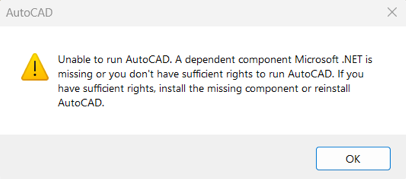
Then, the “Notification Chorus” begins. Three users appear at your desk simultaneously. The symptoms? One has a splash screen that vanishes instantly. Another has a spinning blue wheel of death. The third is staring at a cryptic error message: “A dependent component Microsoft .NET is missing.”
As a CAD/BIM Manager, you aren’t just a technician; you’re a digital firefighter. At Seiler Design Solutions, we know that when AutoCAD won’t launch, production stops. To help you get the team back to their viewports, we’ve combined the best troubleshooting “scrolls” from Autodesk into one handy guide.
Here is the S.D.S. battle plan for when AutoCAD decides to take an unscheduled vacation.
1. The “Identity Crisis” (AdskIdentityManager)
Before you start uninstalling the whole suite, check the Autodesk Identity Manager. Modern AutoCAD relies on this to know who is using the software. If this component is outdated or corrupted, AutoCAD will simply refuse to start because it can’t verify the pilot.
-
The Fix: Often, a quick uninstall and reinstall of the Identity Manager (found in your Program Files) is the “magic wand” that clears the launch hang.
2. The “.NET” Missing Link
This is the “Boss Fight” of startup errors. If a user sees a message saying a Microsoft .NET component is missing, it’s like trying to drive a car with no spark plugs. .NET is the framework that allows AutoCAD to talk to the Windows operating system.
-
The Fix: * The Repair Tool: Use the official Microsoft .NET Framework Repair Tool. It’s a lifesaver that automatically detects and fixes common framework issues.
-
Windows Features: Sometimes .NET is there, but Windows has “turned it off.” A quick trip to “Turn Windows features on or off” in the Control Panel can toggle it back into action.
-
The Last Resort: If .NET is truly corrupted, the article suggests a clean uninstall/reinstall of the AutoCAD software to ensure the prerequisites are laid down correctly.
-
3. Licensing Limbo
If the software starts to open and then vanishes like a ghost, the Autodesk Desktop Licensing Service is likely throwing a tantrum.
-
The Fix: Check your Windows Services. Sometimes the Licensing Service just needs a manual “Restart” to remind it that, yes, the subscription is active and the lights are on.
4. Don’t Ignore the “Account”
One of the most common reasons for these “won’t open” tickets is missed maintenance. Many users treat the Autodesk Access (formerly Desktop App) notifications like “suggestions.”
They aren’t suggestions—they’re survival. To keep your project workflows smooth, ensure the following are updated via the Autodesk Account:
-
Licensing Service Updates: Critical for the “handshake” between the PC and the server.
-
Product Updates: Those .1.2 and .1.3 updates often contain the “hush-hush” fixes for these exact startup crashes.
-
Graphics Drivers: An outdated GPU driver is the natural enemy of a stable AutoCAD launch.
The CAD Manager’s Secret Weapon
When you send a user these troubleshooting steps, you’re doing more than fixing a bug; you’re building a more resilient team. Whether it’s resetting AutoCAD to defaults (the “Nuclear Option”) or repairing the .NET framework, these resources ensure that “Opening Night” for your projects goes off without a hitch.
Keep your templates clean, your paths mapped, and your .NET Frameworks healthy. And if you ever need a hand keeping your design tech in peak condition, Seiler Design Solutions has your back!
Now… you can finally drink your coffee! – Check out the SOP at the bottom and reach out with any of your Autodesk or workflow questions!

References & Technical Guides
For the deep-dive technical steps mentioned in this post, please refer to the official Autodesk Support documentation:
-
General Startup Issues: Unable to run AutoCAD when opening AutoCAD
-
.NET Component Errors: “A dependent component Microsoft .NET is missing” when launching AutoCAD
- SOP for Users: SOP Autodesk Launch Failure TroubleshootingDocument

Leave A Comment