


Bluebeam University: An Introduction
Today, I want to briefly guide you through one of Bluebeam’s greatest online learning resources, Bluebeam University. Bluebeam University has a vast wealth of courses that can be taken to gain a better understanding of the application, as well as training for real-world usage situations. Bluebeam University is included FREE with your Bluebeam Revu 21 license. So, let’s get in and see how to navigate and utilize this incredibly beneficial site.
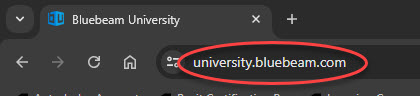
First off, let’s head to “https://university.bluebeam.com/” in your web browser.
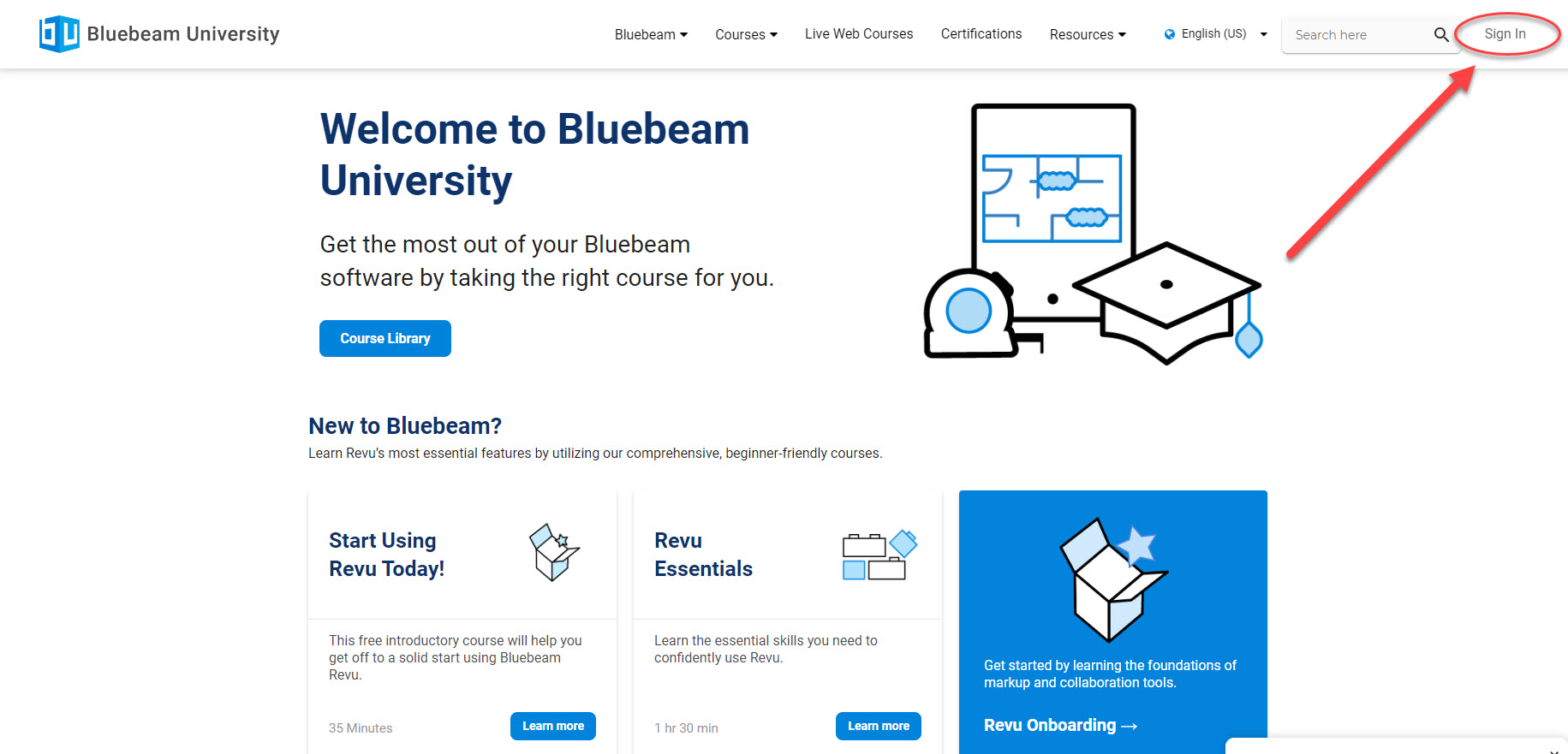
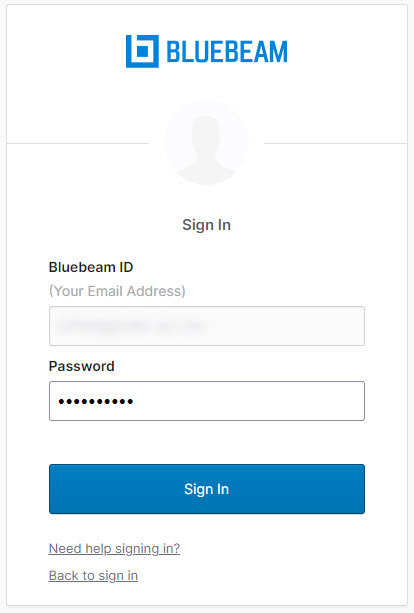
On the main page, we’ll need to sign in to make proper use of the website.
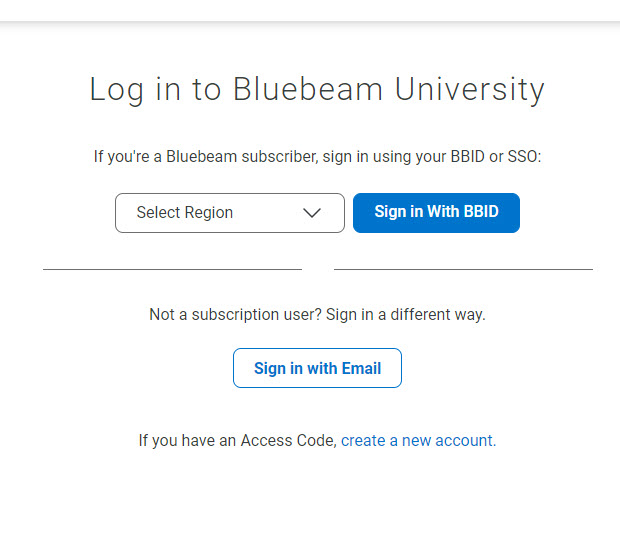
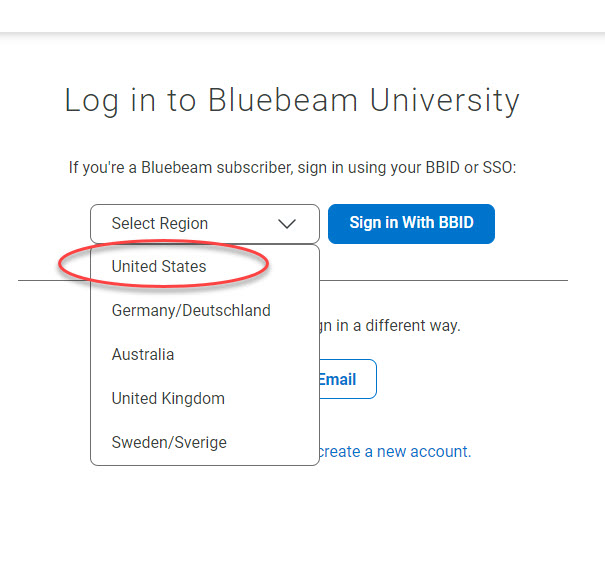
After clicking “sign in,” we’ll need to select our server location. This will be dependent upon where you are located globally.
Here, I am selecting the server for my location.
After this, click on “Sign in With BBID.” You will you use the same login credentials that you use to sign into Bluebeam Revu 21, making this VERY easy to access.
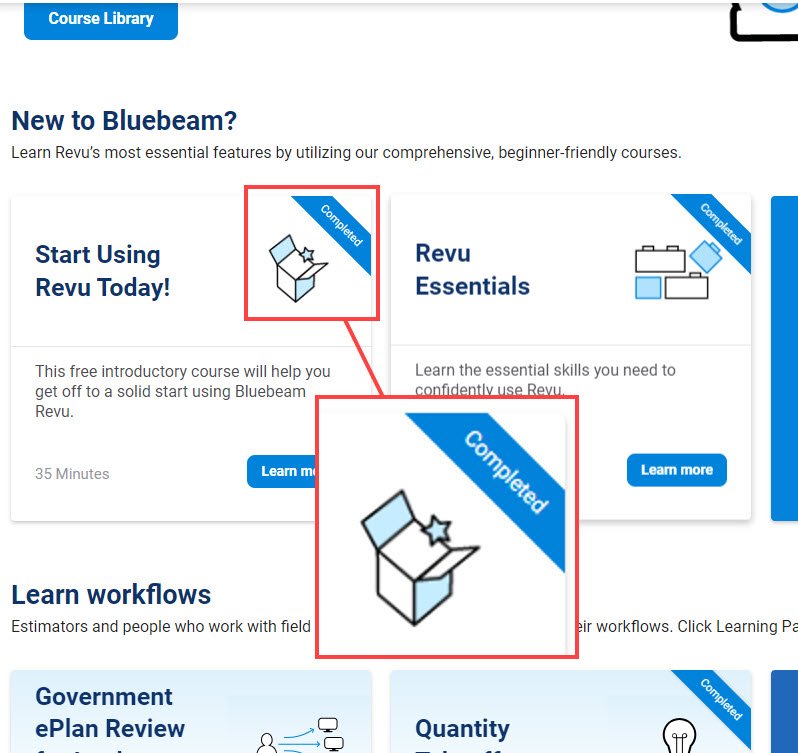
Notice, now that I am signed-in, some of the courses already display as “completed.” This is just one of the ways that Bluebeam University can help you keep track of what you have and have not accomplished.
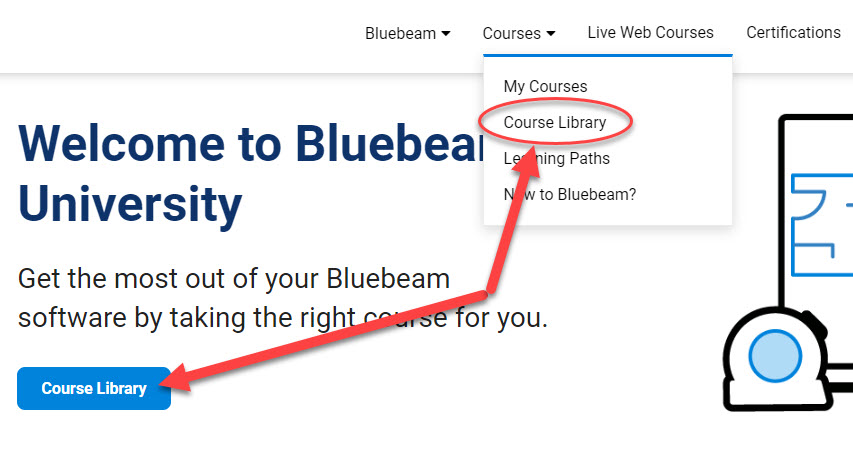
In order to get a full rundown of all the available courses, click on “Course Library.”
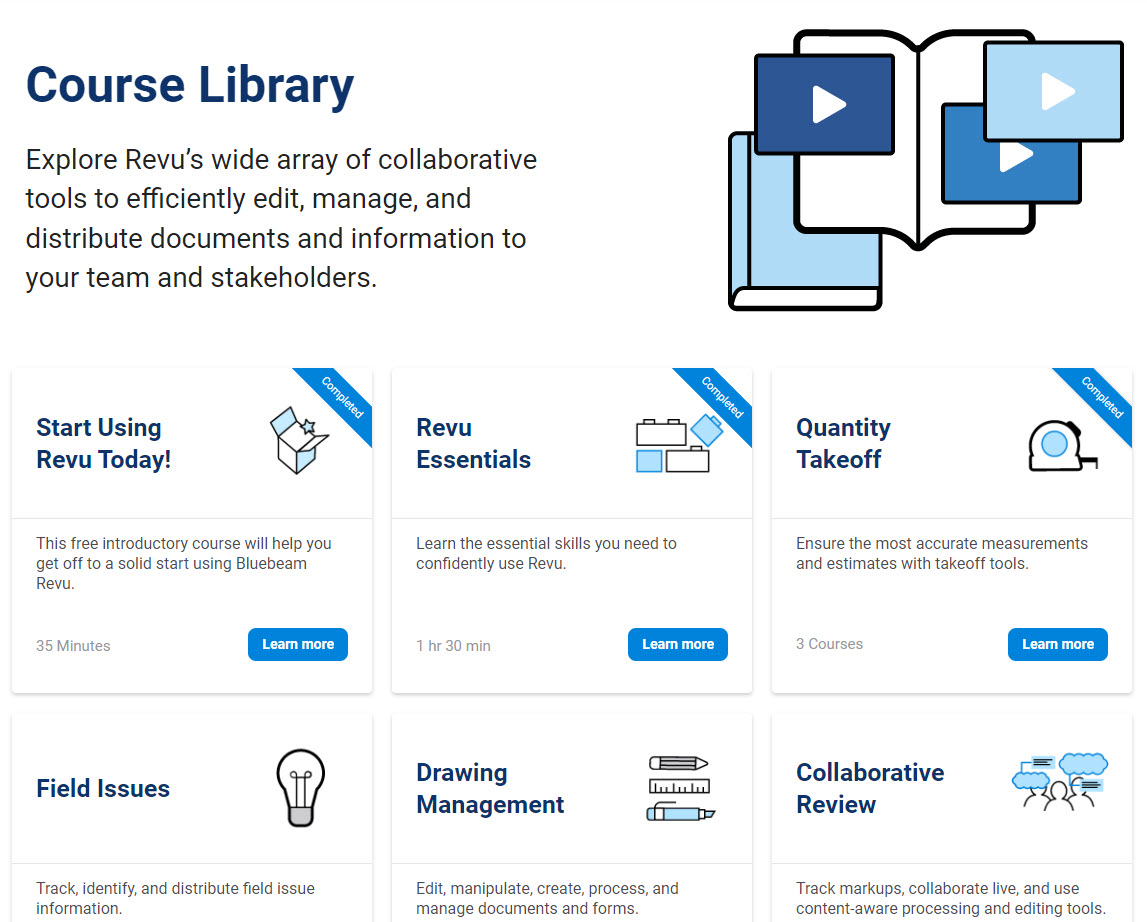
Here, is a full list of the learning resources that are available. Some pertain to basic usage of the program and its tools. Others are task-specific. Note: this is another area where items that are finished will display the “Completed” icon.
In order to begin a course, you will first need to register. This action will add the course to the running list of courses you plan on completing.
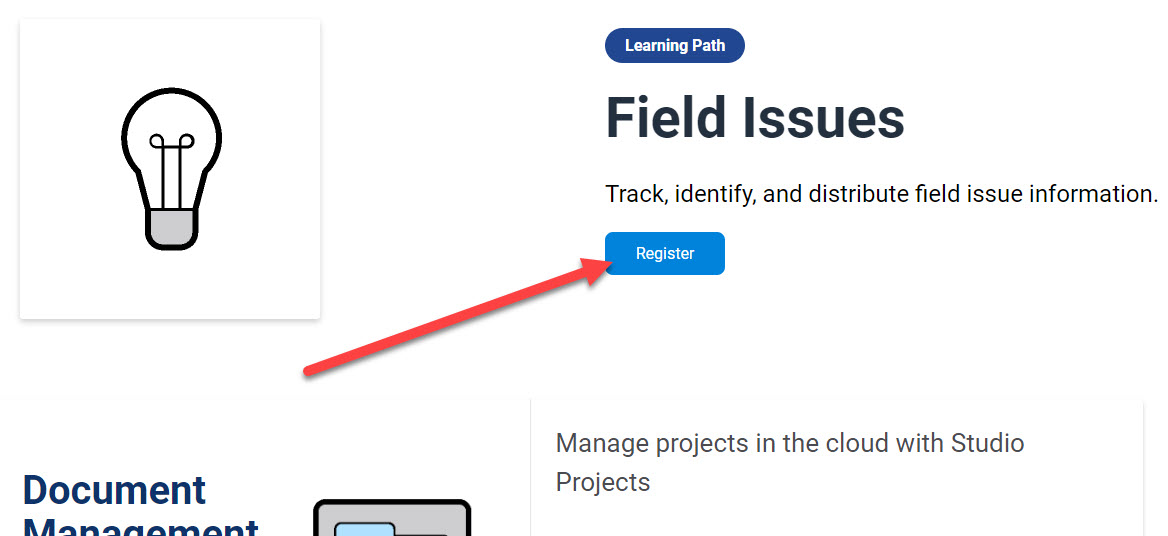
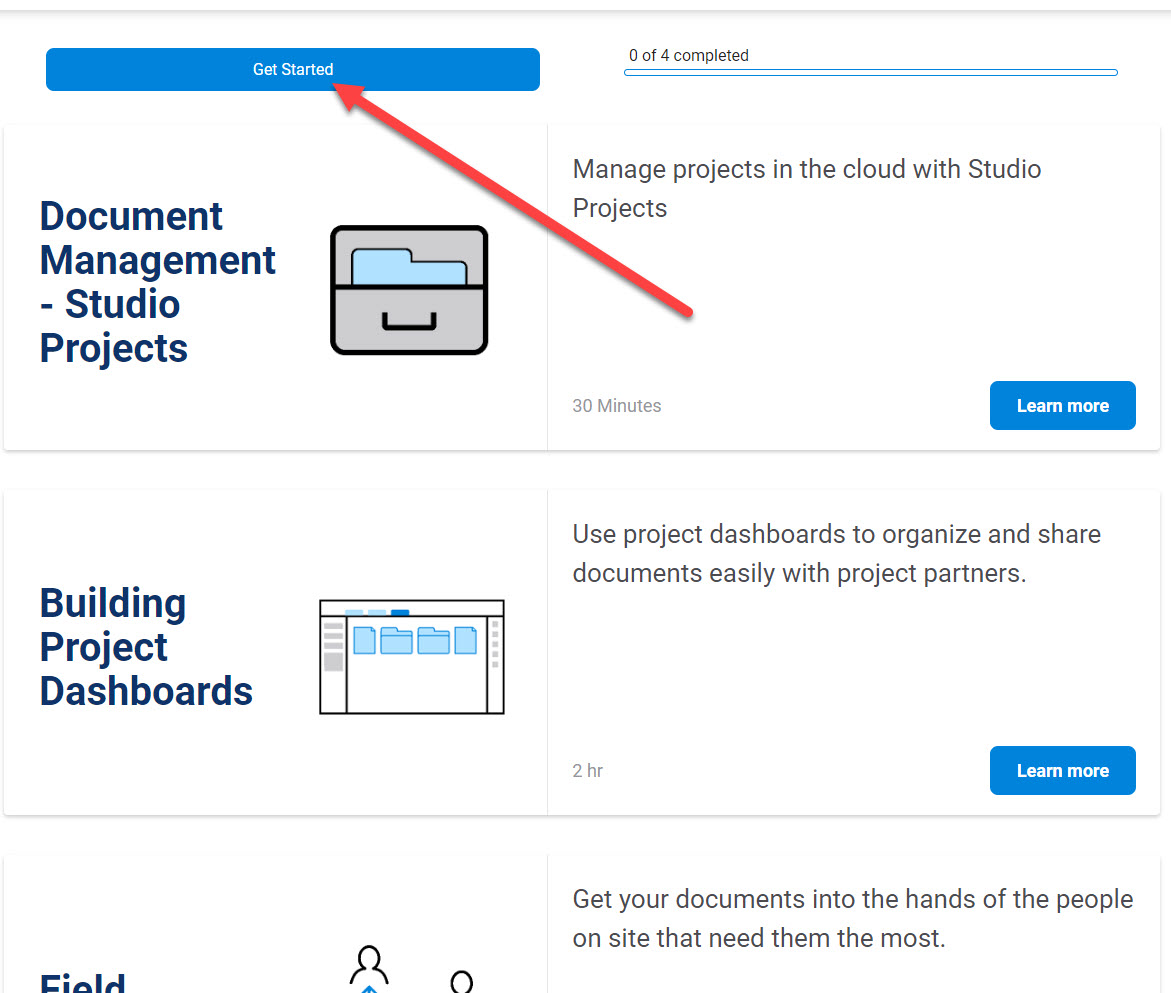
Now that you are registered, you can begin the course at any time by clicking on “Get Started.”
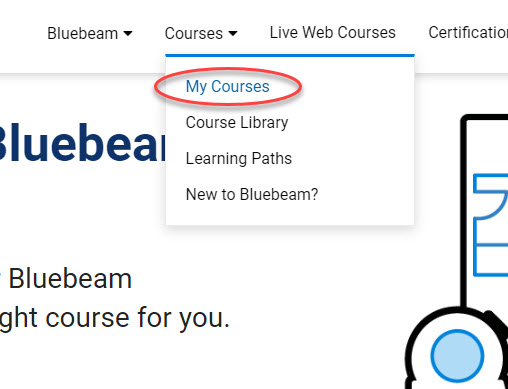
You can also click on “My Courses” from the dropdown at any time to access and edit your profile, and also find a full list of courses that you have engaged with. The status of these courses will also display so you can be sure which ones are completed and which still require further work on your part.
There you go! You can now confidently get started on expanding your Bluebeam knowledge base and increase your proficiency with the application. You can visit THIS PAGE if you’d like to learn more about what Bluebeam University has to offer. While you’re here, I also suggest checking out my recent post about how to check for updates in Bluebeam Revu 21.
I hope you have found this information useful. Thanks for stopping by!
-Luke


Luke, I recently read an article regarding keeping your tool chest sync’d by using the Bluebeam Cloud. I was wondering if you had a way to keep a corporate tool chest synchronized amongst all of our team members., It doesn’t necessarily be cloud based as they all have access to our internal servers.
Yes, there’s a great way to share tool sets with others in your team without needing to utilize the cloud functionality. You can simply export the toolset out and make that file available, like in a shared drive location. This works great if you have company standards that everyone needs to adhere to. You can export entire profiles out that could also contain those specialty toolsets. My other post goes into detail on this: