

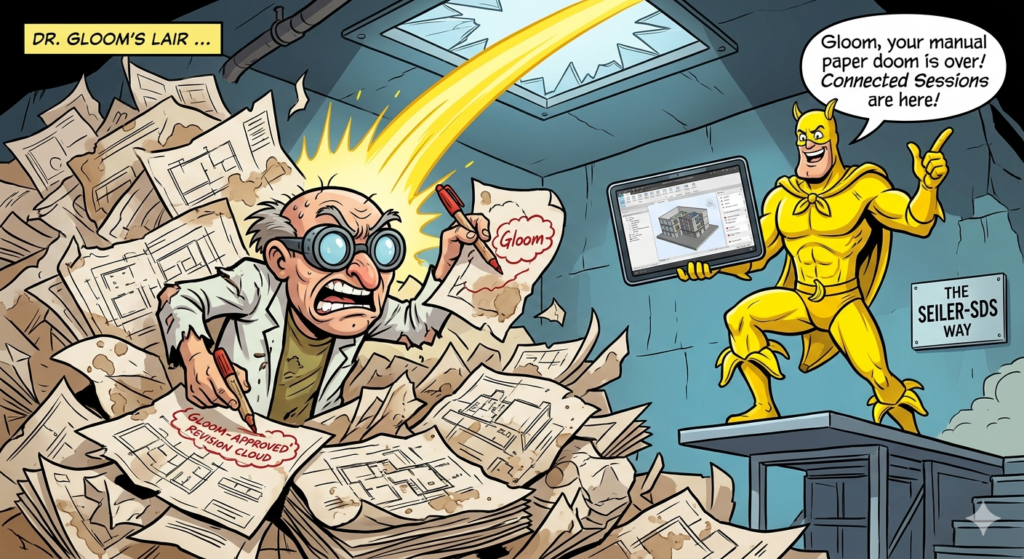
 The sky above the project site was dark, brooding, and filled with the menacing storm clouds of poor coordination. In his subterranean lair, Dr. Gloom cackled over a towering pile of disconnected PDFs.
“Fools!” Dr. Gloom hissed, brandishing a dried-out red Sharpie. “They think they can trace my chaotic, illegible scribbles back to the 3D model? I used a third-party PDF printer! The metadata is severed! By the time they decipher my revision clouds, the concrete will have cured backwards!”
Suddenly, a bright yellow streak smashed through the skylight. Glass rained down, but the hero landed with a perfect, potassium-rich thud.
It was Bananaman.
“Not so fast, Gloom!” Bananaman shouted, striking a heroic pose. “Your days of PDF pandemonium are over! We’re deploying the Seiler-SDS workflow. It’s time to peel back the layers of inefficiency with Bluebeam Max Connected Sessions!”
Dr. Gloom scoffed. “Bah! You can’t connect my glorious mess to a live Revit 2027 model! It defies the laws of despair!”
“Watch me,” Bananaman smirked. “Let’s split!”
Here is the actual secret to defeating the forces of uncoordinated doom and viewing your live Session markups directly inside Revit.
Step 1: The Golden Rule of PDF Creation
“You can’t just hit ‘Ctrl+P’, Gloom!” Bananaman warned, wagging a yellow-gloved finger. “Connected Sessions rely on embedded metadata!”
To make the magic work, you must generate your drawings using the official plugin.
-
Open your model in Revit 2027.
-
Head to the Add-Ins tab.
-
In the Bluebeam section, click Create PDF.
Villain Fact Check: If Dr. Gloom creates the PDF using any other print driver, the vital metadata won’t export, and Connected Sessions will fail.
Step 2: Mind the Viewports!
Over in Bluebeam Revu, Dr. Gloom maliciously tried drawing a giant frowny face in the blank margins of the title block.
“Nice try,” Bananaman laughed. “But Connected Sessions rely on viewports to bind the markups to the model.”
If you add a markup outside of a viewport in Revu, it will not show up in Revit. To ensure your sheets are ready for action, open your PDF in Revu, pop open the Measurements panel on the left, and check under the Viewports dropdown. As long as those viewports haven’t been deleted or resized, any markup placed inside them will sync flawlessly.
Step 3: Spark Up the Session
Now that your PDF is primed with metadata and viewports, it’s time to collaborate.
-
In Revu, go to Studio and hit Add > New Session.
-
Upload your generated PDF.
-
Invite the team to start making their markups.
Bananaman’s Pro-Tip: The people adding markups in the Session don’t even need a Bluebeam Max subscription! They can jump in and comment away. Only the hero pulling the data back into Revit needs the Max plan.
Step 4: The Revit Connection
Back in the authoring environment, it’s time to reveal Dr. Gloom’s hidden errors.
-
In Revit, go back to Add-Ins > Connected Sessions.
-
Sign in with your Bluebeam ID (BBID). (Note: You can’t be signed into a Studio Session in Revu and a Connected Session in Revit simultaneously).
-
Select your active Session from the list.
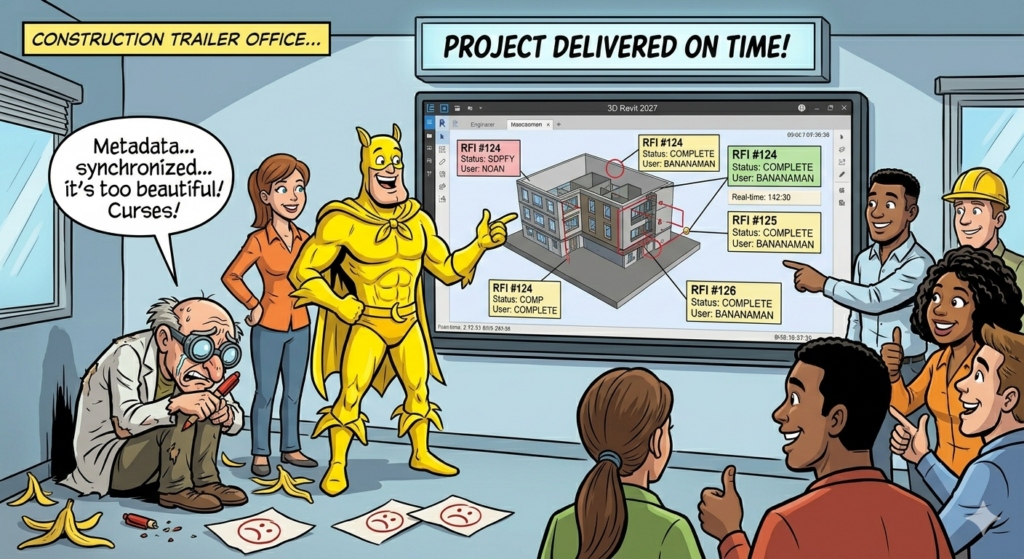
“Curses!” Dr. Gloom yelled, dropping his tablet. “My markups… they are visible on the 2D sheets AND the 3D views?!”
“That’s right, Doc,” Bananaman said, adjusting his cape. “Real-time engagement, overlaid directly on the model elements.”
The Aftermath
Dr. Gloom dropped his red marker, falling to his knees. The synced data was too beautiful, too accurate. The project was going to be delivered on time.
“There’s no room for my misinterpretations anymore!” Gloom wept.
“That’s the point,” Bananaman smiled. “With Revit and Bluebeam Max Connected Sessions, the whole team stays in the loop. No more printing, no more lost data, and definitely no more villainous red pens.”
So, the next time you find yourself drowning in a sea of disconnected PDFs, remember: generate your PDFs through the Add-In, keep your markups inside the viewports, and never slip on the job!
References
Feel free to contact us with any software and hardware workflow questions!



Leave A Comment