

You’ll learn exactly how to populate your Revit project with sheets and push them to Autodesk Forma, ensuring your 3D data is no longer a “secret” and remains perfectly synced with the rest of your coordination team. ? Scene-Setting Context
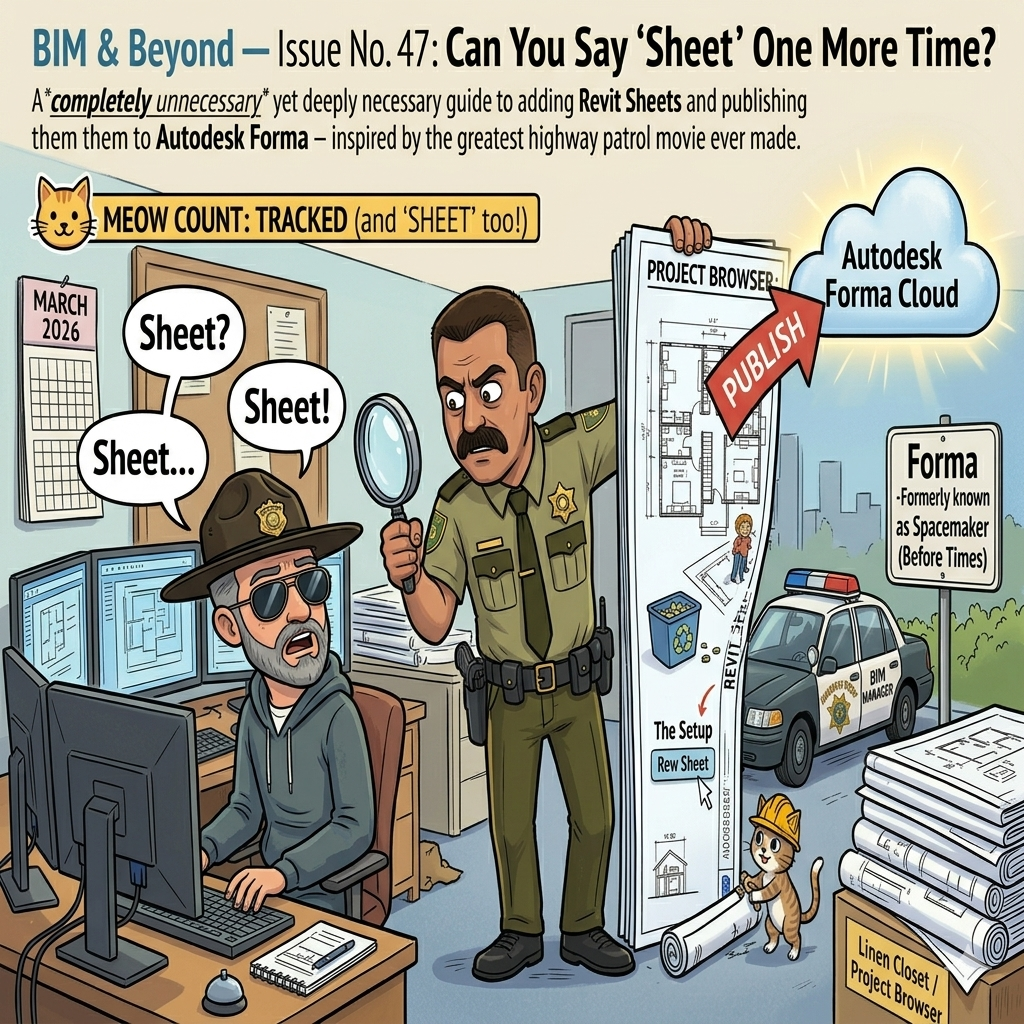
In Super Troopers, Officer Ramathorn bets his fellow trooper that he can say “meow” to an unsuspecting motorist as many times as possible without the driver noticing. The result is one of the greatest bits in comedy history. Today, we’re doing the same thing — except instead of “meow,” we’re slipping in sheet as many times as humanly possible throughout this tutorial. You’re welcome.
Look, we’ve all been there. You open up your Revit project, stare at the blank project browser, and realize you have zero ? SHEET 1s to show for your hard work. Your project is essentially a beautiful 3D secret that nobody in the coordination pipeline can see. It’s time to get your ? SHEET 2 together — and then push it straight to Autodesk Forma so the whole team stays in sync.
Don’t worry. By the end of this tutorial, you’ll have so many ? SHEET 3s in your project that your project browser will look like a freshly laundered bed of them. Let’s go.
1.The Setup — Creating Your First Sheet in Revit
Before you can publish anything to Forma, you need actual ? SHEET 4s in your Revit project. Think of this like the trooper needing a driver to pull over — no driver, no game. No ? SHEET 5, no publish.
Opening the New Sheet Dialog
- In Revit, navigate to the View tab in the ribbon. (You know, the one you pass over seventeen times looking for things.)
- In the Sheet Composition panel, click Sheet. A dialog will appear asking you to select a title block. This is your? SHEET 6 birthplace.
- Select your title block family from the list. If you don’t have one, click Load … and load a title block from your company’s library — or Autodesk’s default library if you’re living on the edge.
- Click OK. Congratulations. You have one? SHEET 7. You’re basically an architect now.
Naming and Numbering Your Sheets
- In the Project Browser, right-click your new? SHEET 8 and select Properties.
- Set the Sheet Number(e.g., A101) and Sheet Name(e.g., “Floor Plan – Level 1”) in the Properties panel. Yes, naming matters. “Untitled Sheet 1” is not going to impress anyone at the design review.
- Add views to your? SHEET 9 by dragging them from the Project Browser onto the sheet canvas. Floor plans, elevations, sections — pile them on like toppings at a burrito bar.
- Repeat as needed until your project has a full, logical set of drawing? SHEET 10s.
2.Connecting Revit to Your Autodesk Forma Project
Here’s where things get exciting. Autodesk Forma (formerly known as Spacemaker/ACC/BIM360, for those of you who remember the Before Times) is your cloud-based design and coordination hub. To push your ? SHEET 11 data up to Forma, you need to make sure Revit knows where to send it.
Prerequisites Before You Publish a Single Sheet
- You must have the Autodesk Forma integration enabled in your Revit install. Check your Revit Add-ins tab — if you see the Forma panel, you’re golden.
- Your Revit model must be saved to Forma / Autodesk Construction Cloud (ACC) or BIM 360. A locally saved .rvt file isn’t going to make it to the cloud on its own. Give it a lift.
- You need an active Forma project that is linked to the same ACC hub. This was set up by your BIM Manager — that brilliant, underappreciated genius.
3.Using the Publish Command to Push Sheets to Forma
Okay, this is the main event. You’ve got ? SHEET 12s in your project, your model is in the cloud, and your Forma project is standing by like an eager intern. Time to publish.
Accessing the Publish Command
- In Revit, go to the Add-ins tab and locate the Forma panel. You should see a Publish button waiting for you like a patient golden retriever.
- Click Publish. A side panel or dialog will open showing your connected Forma project. If it asks you to sign in to Autodesk, do so. Use your actual credentials, not the ones you use for your dog’s Instagram.
- The Publish dialog will display a list of available? SHEET 13s from your Revit project.
Selecting Which Sheets to Publish
- In the Publish panel, you’ll see a checklist of your Revit? SHEET 14s. Select the ones you want to push to Forma. You can select all, or be surgical about it — maybe only the floor plans and site plans need to go up right now.
- Review the sheet metadata— number, name, revision — to make sure everything looks right. A? SHEET 15 named “Unnamed” going to Forma is a red flag visible from orbit.
- If your model has associated geometry (levels, masses, building elements), confirm that the model data toggle is also enabled. This is what feeds Forma’s design intelligence tools — shadow analysis, massing, program areas — the good stuff.
Executing the Publish
- Once your? SHEET 16s are selected and settings confirmed, click Publish (or Submit depending on your Revit/Forma version). Revit will begin packaging your sheet data and uploading it to Forma.
- A progress bar will show the upload status. This can take anywhere from a few seconds to a few minutes depending on how many? SHEET 17s you’re sending and the complexity of your model. Now is a great time to refill your coffee and reflect on your life choices.
- When complete, you’ll receive a success notification. Cherish it. Frame it. You’ve done something real today.
Revit → packages sheet views as PDF/DWF + model geometry
→ uploads to ACC cloud endpoint
→ Forma ingests sheet data + model elements
→ Forma updates Sheets panel + design proposals
→ Your team rejoices ?
4.What Updates in Autodesk Forma After Publishing
Here’s where the magic happens — and why all this ? SHEET 18 work is worth it. Once Forma receives your published data, several things update automatically across the platform.
| What Updates | What It Means For Your Team |
|---|---|
| Sheets Panel | All published ? SHEET 19s appear in Forma’s Sheets panel, viewable by every project member with access. No more emailing PDFs around like it’s 2009. |
| Sheet Metadata | Sheet number, sheet name, revision number, and issue date sync from Revit’s title block data into Forma’s sheet properties. |
| 3D Model Data | Building geometry, levels, and massing update in Forma’s 3D canvas, powering tools like shadow analysis, wind simulation, and area calculations. |
| Design Proposals | If your published model is linked to a Forma design proposal, that proposal updates with the new model information — keeping your urban planning and design data current. |
| Version History | Each publish creates a timestamped version entry in Forma. Every ? SHEET 20 publish is logged, so you have a full audit trail. Project managers love this. Architects tolerate it. |
5.Viewing and Managing Your Sheets in Forma
Now flip over to your Autodesk Forma project in the browser. Your freshly published ? SHEET 22s are waiting for you.
- Open your Forma project and navigate to theSheetssection in the left sidebar. You’ll see each published? SHEET 23 listed with its number, name, and revision info pulled directly from Revit.
- Click any? SHEET 24 to open it for review. Forma renders the sheet as a crisp, zoomable document — no more squinting at emailed PDFs the size of a postage stamp.
- Team members can leave comments and markups directly on individual? SHEET 25s. These comments sync across the team in real time. It’s like a document review meeting, except nobody has to sit through a document review meeting.
- The3D model view in Forma will reflect your published geometry. Use this to run sun studies, wind comfort analysis, and area calculations— all powered by the same model data behind your? SHEET 26s.
- To see version history, navigate to the Activity or Versions panel. Every Publish creates a clean record of what was sent and when. Accountability has never been so… organized.
? Final Meow — I Mean, Sheet — Count
26CONFIRMED “SHEET” MENTIONS IN THIS ARTICLE“I’ll take that ten bucks, Foster.” — Ramathorn, probably
✓ The Wrap-Up: What You’ve Learned Today
If you made it this far without noticing the running gag, congratulations — you’re exactly the driver Ramathorn was looking for. And if you did notice, congratulations — you’re a Super Troopers fan and now a Revit-to-Forma publishing expert. The best kind of person.
Here’s the quick-reference summary of everything covered:
- Create Sheets in Revit via View → Sheet Composition → Sheet. Add title blocks, name them properly, populate with views.
- Ensure your model is cloud-hosted on ACC/BIM 360 and connected to an active Forma project via the Forma add-in.
- Use the Publish command in the Revit Add-ins → Forma panel. Select your sheets, confirm metadata, and click Publish.
- Forma updates automatically— Sheets panel, sheet metadata, 3D model data, design proposals, and version history all refresh with each publish.
- Review in Forma— view sheets, leave comments, run analyses, and maintain version records. Repeat the publish cycle whenever the model changes.
BIM & Beyond — No architects were harmed in the writing of this tutorial.
Super Troopers (2001) dir. Jay Chandrasekhar · “Do I look like I give a meow?” · All Revit & Autodesk Forma trademarks belong to Autodesk, Inc.



Leave A Comment