If you’ve started experiencing slow response in the File menu tab of Revit the below can help speed file menu and file access faster.
First we need to get to the version of Revit that is causing issues (this might be multiple versions and the below steps will need to be completed for each version)
Lets go to the following path: C:\Users\%USERNAME%\AppData\Roaming\Autodesk\Revit\Autodesk Revit <version>
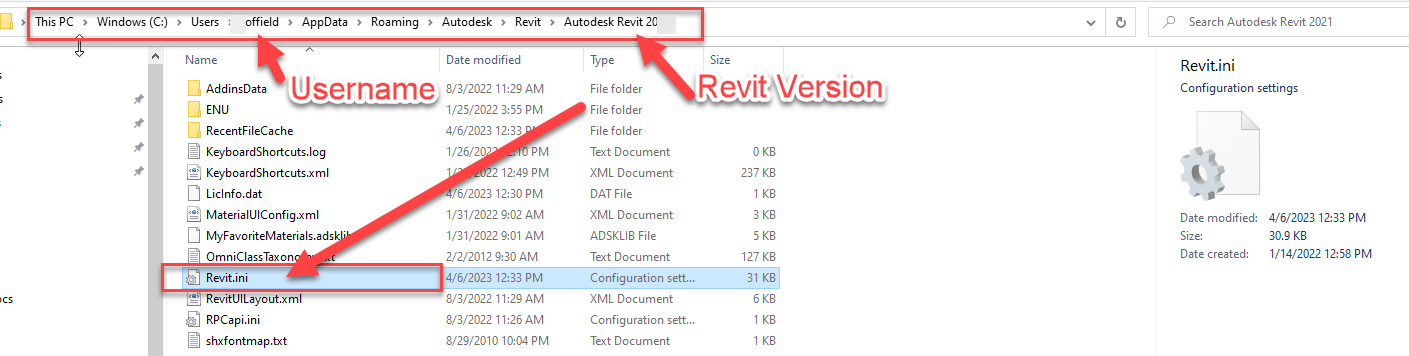
Now lets open the Revit ini file using Notepad
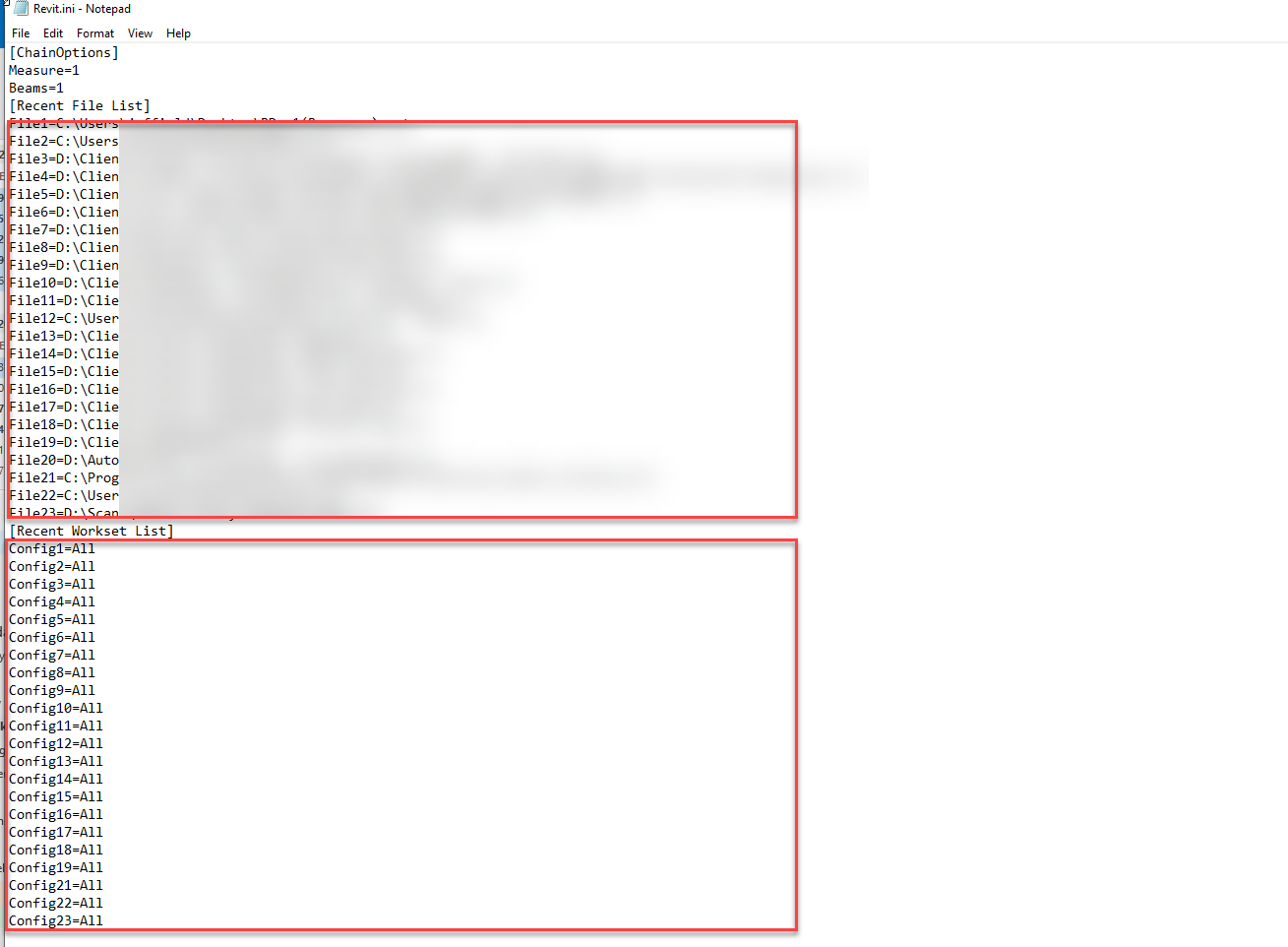
Once we get the Revit ini file open, scroll to the bottom and find Recent Files and Recent Workset Lists
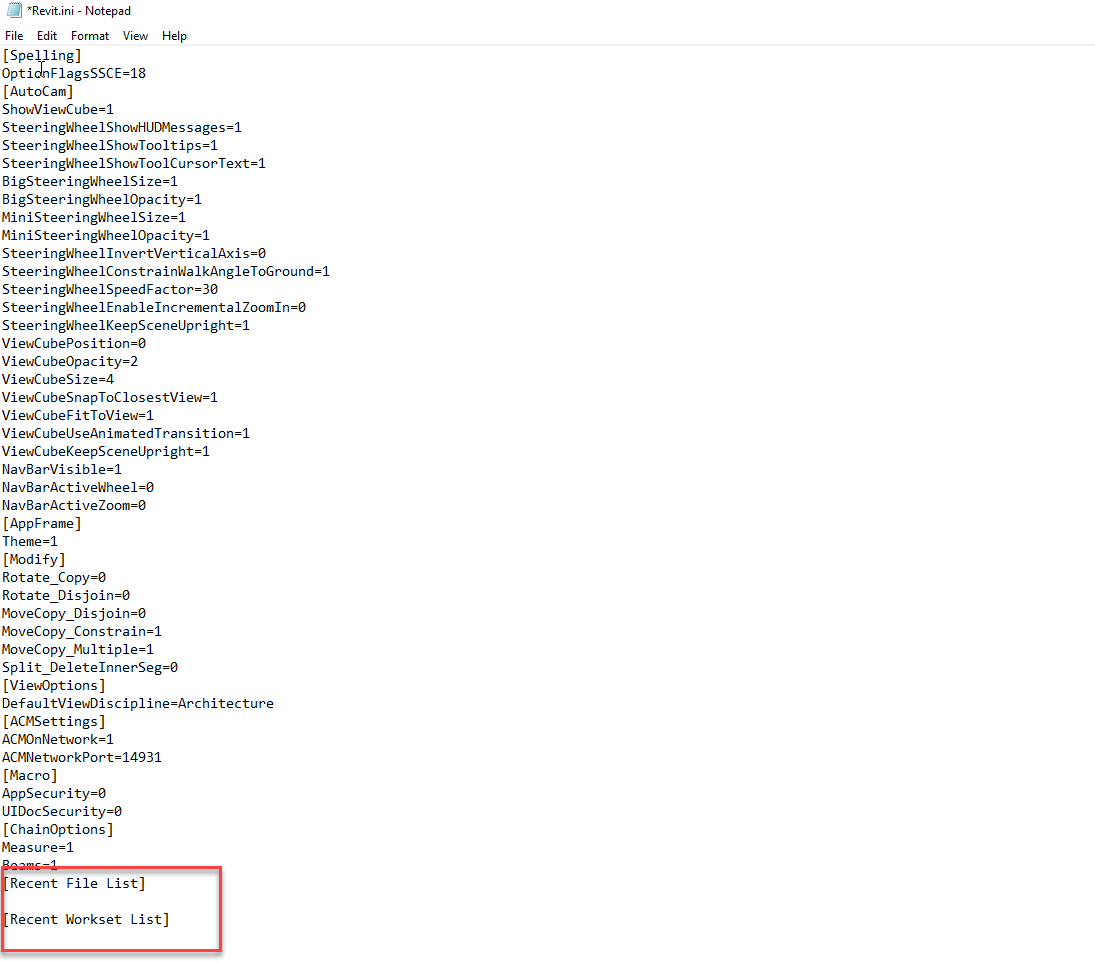
Lets delete everything listed under Recent Files and Recent Workset Lists (keep the headers like you see in the image above)
Now, lets save and close the Revit ini file then restart the Revit version. It can take a minute for Revit to open up and get things refreshed, but you should notice a speed increase in using your File menu tab and opening files.

John Offield has over 25 years of experience from Design Build, Engineering and Architectural Firms. John has also been a speaker for the AIA, SMACNA, Structures Congress of Americas, AUGI, CADCAMP, Autodesk events and publications for several Autodesk software over the last 20 years. John has utilized his Design Build, Architectural, MEP, and Structural Design experience with his combined software knowledge / skills to implement BIM into firms small and large. Specialties include workflows between multiple offices and disciplines of BIM / VDC, scanning and hardware, standards, project coordination, and content creation with Revit, Dynamo, Navisworks, and other AEC Autodesk software. John is also an Autodesk Certified Instructor ready to implement custom training and software / hardware workflows. On the personal side, John enjoys spending time with his family, friends, and extended family members (3 dogs), being outdoors working on his farm (fishing, hunting, camping, etc.), gardening, playing guitar, going to concerts.


Leave A Comment