

The latest release of the Autodesk Desktop Connector (v2027.0) is more than just a routine patch—it’s a foundational shift in how project data moves between the office and the field. To break down what this means for your workflow, we sat down with three key project stakeholders to discuss their favorite features and why staying current is no longer optional.

The Architect’s Perspective: Design Integrity & Standards
Alex (Architect): “For me, the biggest deal is the enforcement of Naming Standards. In previous versions, keeping everyone compliant with ISO 19650 was a manual nightmare. Now, with the Naming Validator, if someone tries to drop a file with a non-compliant name into the connector, it flags it immediately.
But honestly? The most practical ‘quality of life’ update is the Windows 11 Context Menu integration. I no longer have to click ‘Show more options’ to find my Desktop Connector commands. It sounds small, but when you’re managing hundreds of links a day, those extra clicks add up. Plus, if you’re moving to Revit 2025 or later, updating isn’t just a recommendation—it’s a requirement for linking files effectively.”
The Engineer’s Perspective: Performance & Reference Management
Sam (BIM Lead / Engineer): “I care about stability and speed. The latest update has significantly reduced memory usage, especially when we’re subscribed to dozens of projects. I’ve noticed the ‘Project Scanning’ is much faster now because the software only looks for changes in projects I’ve actually touched recently.
The Automatic File Locking is also a game-changer for multi-discipline coordination. In the past, someone might open a Rhino (.3dm) or an InDesign file and make changes while I was working on it, leading to version conflicts. Now, the Connector locks the file the second it’s opened and unlocks it when closed. It prevents those ‘Sync Conflict’ headaches before they even start.”
The Contractor’s Perspective: Field Access & Clarity
Chris (General Contractor): “Out on the job site, I need to know exactly why a file isn’t opening or why I can’t edit a spec. The new Clearer Error Messages are great—instead of a generic ‘failed’ notice, the Connector now tells me exactly who has the file locked.
I’m also using the ‘Create Viewable’ right-click command constantly. If a PDF or drawing didn’t generate a viewable version in the cloud properly, I can force it to happen directly from my desktop. It ensures the guys in the field aren’t staring at a spinning wheel when they need to see a detail.”
Top 5 Reasons to Hit ‘Update’ Today
-
Mandatory Compatibility: Versions of AutoCAD, Revit, and Civil 3D from 2025 onwards require the v16.x/v2027 architecture to function correctly with cloud links.
-
Forma Integration: The March 2026 update officially rebrands Autodesk Docs to Forma Data Management, aligning with the new unified ecosystem for better site and conceptual design workflows.
-
Expanded File Support: Native support and reference handling have been improved for non-Autodesk files, including Adobe InDesign, Rhino, and Bentley OpenRoads.
-
Bulk Operations: Improved handling of long file paths and a redesigned ‘Upload with References’ wizard make moving entire project folders much safer.
-
The Troubleshooting Tool: A new toggle allows you to filter for only files with issues, so you can fix broken links or missing references in seconds rather than hunting through thousands of files.
Pro-Tip: Don’t Just Install—Reset.
For a major version jump (like moving from v15 to v16 or v17), the “cleanest” way to update is to use the Autodesk Reset Utility. It clears out your old local cache and ensures your new ‘Forma’ or ‘Docs’ connectors start with a fresh, synchronized state.
How to check your version:
-
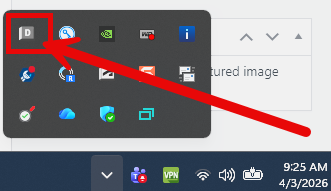
Right-click the Desktop Connector tray icon (the white ‘D’).
-
Select Help > About.
-
If you see “Update Available” in the menu, it’s time to give your team the performance boost they’ve been waiting for.


Leave A Comment